Troubleshooting Galaxy Watch Complications
If you own a Galaxy Watch series running Wear OS 5, newly installed watch faces may occasionally fail to show weather details or custom complication data. This behavior is linked to Samsung’s One UI Watch power management policies and the new Watch Face Format (WFF) guidelines. Applying specific configuration adjustments gets your complication widgets running normally across your daily routine without causing unnecessary system slowdowns or visual errors.
Samsung Weather and WFF Interactions
Galaxy Watch devices utilize background sleep management to extend overall battery performance throughout your busy day. However, this optimization can sometimes prevent external data providers from updating watch face complications smoothly when you need them most:
- Samsung Weather Sync Pauses: The default Samsung Weather application may suspend background location tracking if it is placed in an optimized battery state, leaving complication slots unpopulated on the watch face. Setting this application to maintain background network privileges resolves intermittent sync interruptions.
- Slot Format Matching: According to Android Developer documentation, WFF categorizes complication slots strictly by format. If a slot is built for an icon or short numerical value, attempting to feed it unformatted text results in an empty visual container.
- Sync Latency: Communication between the Galaxy Wearable companion app on your phone and the watch hardware may require a manual configuration refresh after major system updates or fresh watch face installations.
Fixing Issues via Galaxy Wearable
You can rapidly troubleshoot synchronization issues using either your connected smartphone or directly on the watch itself.
Configure Permissions via Galaxy Wearable
Open the Galaxy Wearable app on your paired smartphone. Go to Watch settings > Apps, locate Samsung Weather, and check its permission status. Ensure that location tracking is permitted at all times. On the phone, also ensure that the Galaxy Wearable companion service is not restricted under Android background battery optimization policies, which could otherwise suspend companion data relays.
Reassign Complications on the Watch
On your Galaxy Watch, press and hold the watch face, then tap Customize. Swipe to the complications management screen, tap the blank slot, and choose your desired data provider (such as Weather or Steps). Rebinding the slot directly clears stale caching from previous system updates.
Verify Network Connection and Location Services
Make sure your Galaxy Watch maintains an active Bluetooth connection with your smartphone or a direct Wi-Fi or LTE connection, and confirm that Location (GPS) is toggled on under the watch’s Quick Settings panel so regional forecast updates fetch on time.
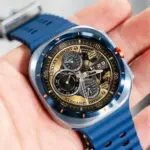
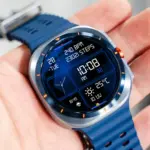
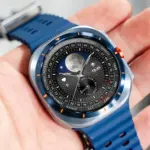
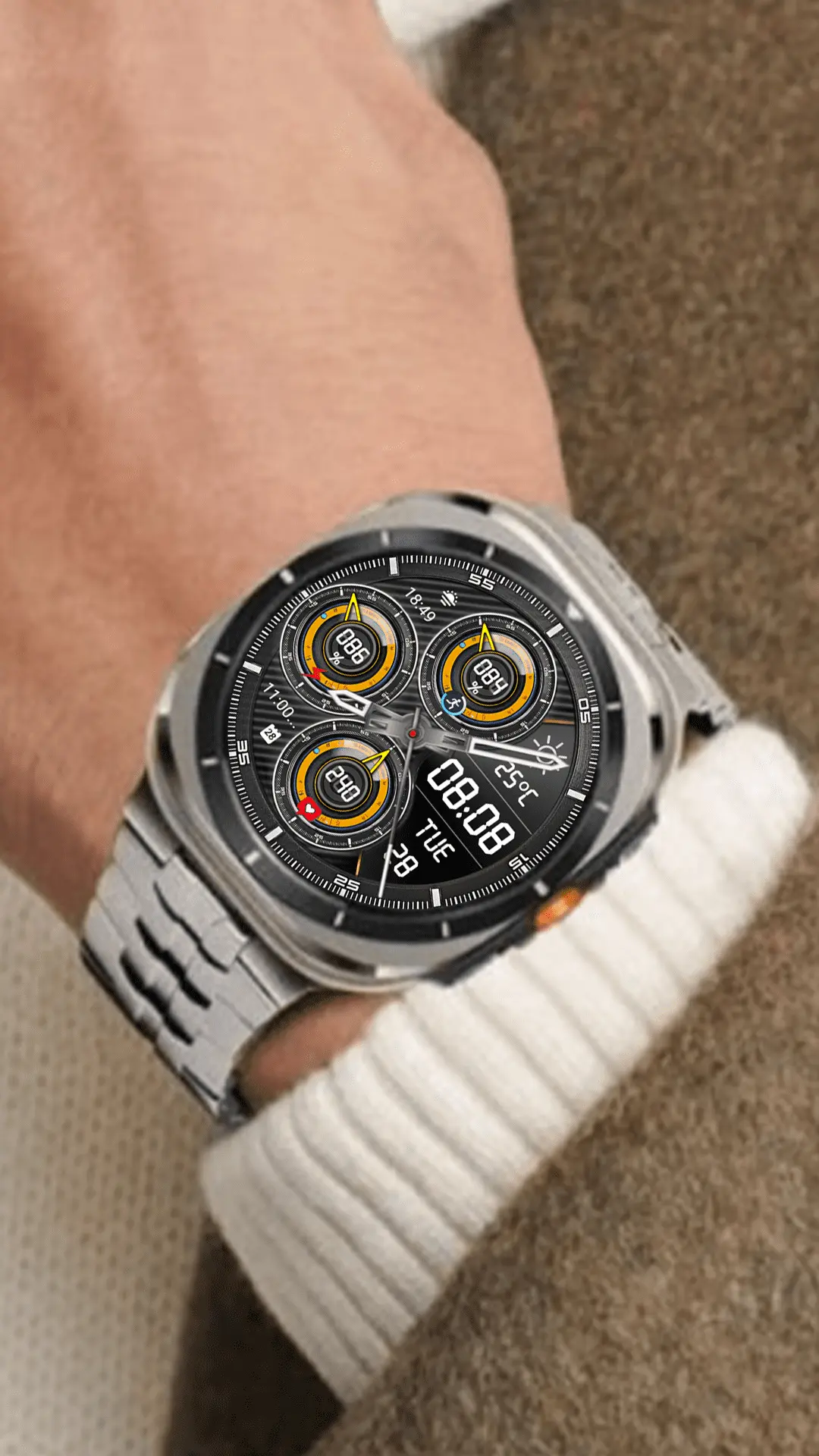
N-SPORT 767 Overview
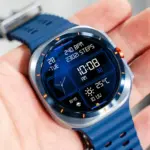
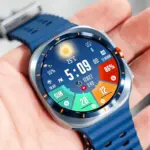
The N-SPORT 767 features analog hour and minute hands alongside a digital time display supporting both 12H and 24H modes, with support for the X15 Weather Icon representing 15 distinct weather states. Correct configuration ensures your Galaxy Watch displays complication metrics rather than empty slots.